
Ultimate Android Gaming Performance Guide: Optimize FPS, Reduce Touch Latency & Extend Battery Life
Complete guide and studio overview for Ultimate Android Gaming Performance Guide: Optimize FPS, Reduce Touch Latency & Extend Battery Life, verified by CafeGms Studio for mobile players and web publishers.
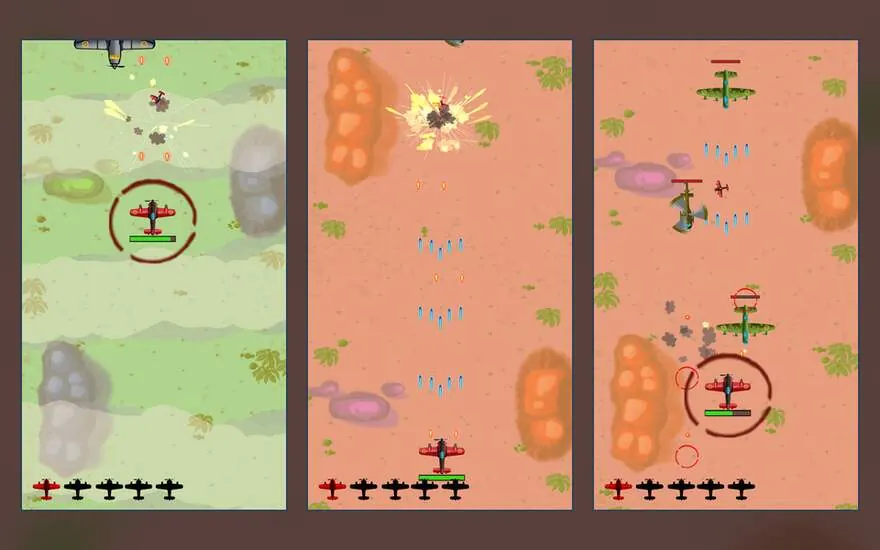
1. Enabling Developer Options and Setting Touch Sampling Rates
Touch input latency is the duration between your finger striking the glass and your on-screen aircraft or ninja responding. Modern Android displays feature touch sampling rates ranging from 120Hz to 360Hz.
To unlock peak responsiveness in games like Galaxy Shooter and Ninja: Shadow Ascent, verify that your display refresh rate is set to "High (90Hz/120Hz)" or "Dynamic" in Android Settings > Display > Smooth Display / Screen Refresh Rate.
- Enable "Game Turbo", "Game Space", or "Shark Space" performance mode on Xiaomi, OnePlus, Realme, and Samsung devices.
- Set Game Performance Mode to prioritize Touch Response Rate over resolution upscaling.
- Disable three-finger screenshot gestures in System Gestures; gesture listeners intercept touch events and add a 40ms buffer delay before passing inputs to game canvases.
04. Storage Hygiene, Display Hz Locks & Long-Session Habits
Even well-coded offline Android games lose responsiveness if system storage stays above 92% capacity—leaving flash controllers unable to wear-level cache writes smoothly—or when high-brightness adaptive OLED panels run alongside 120Hz scrolling in unnecessary menus. Keeping at least 4–6 GB of free internal space, pinning ambient brightness indoors around 45–55%, and opting into 60Hz frame caps for puzzle titles stretches real-world battery endurance by hours during long flights or train rides without sacrificing responsiveness.
2. Battery Optimization Whitelisting for Uninterrupted Play
Aggressive vendor battery savers (such as MIUI Battery Saver or Samsung Device Care) frequently kill background audio decoders or downclock CPU clusters mid-game, causing unexpected audio desyncs.
Navigate to Settings > Apps > CafeGms Titles (e.g., Diamond Rush) > Battery > Select "Unrestricted / No Restrictions". This ensures the Android OS provides full multicore scheduling priority.
3. Choosing the Best Offline Arcade Games Under 50MB for Low-Storage Android Phones
Players commuting or traveling on low-storage phones frequently search for the best offline arcade games under 50MB for Android that work with zero Wi-Fi and zero background bloat. Look for three technical hallmarks before installing any travel game: deterministic 2D/tilemap rendering, full local save persistence inside private app storage, and zero mandatory online DRM handshakes.
All five CafeGms arcade releases—spanning puzzle platformers like Diamond Rush, vertical space shooters like Galaxy Shooter, WWII dogfights in Air Force: Airplane, stealth action in Ninja: Shadow Ascent, and free virtual reels in Jackpot—are engineered around lean offline-first loops so budget devices with 2 GB RAM sustain smooth 60FPS pacing.
05. Sustaining Peak Refresh Stability Without Thermal Throttling
Sustained mobile gaming performance boils down to watts dissipated inside thin sealed phone chassis. Running uncapped particle shaders, high screen brightness, and redundant background location polls simultaneously pushes SoC temperatures above 42°C within minutes, forcing Android thermal governors to halve CPU/GPU clock speeds down to sluggish 30 FPS fallback modes.
Setting explicit frame-rate caps matched to display cadence, using lightweight procedural audio instead of decoded streaming stems, toggling Low VFX mode during extended commuting sessions, and letting players pause cleanly between boss waves dramatically extend battery runtime while keeping touch response crisp and responsive for hours.
- Frame Pacing Consistency: Stable 60 FPS feels far smoother than erratic 90 FPS dipping wildly during particle bursts.
- Thermal Budget Awareness: Keep average CPU/GPU utilization below 65% in casual puzzle and shooter scenes.
- Web & Native Parity: Both HTML5 canvas demos and compiled APK builds respect reduced-motion and power-saver states.